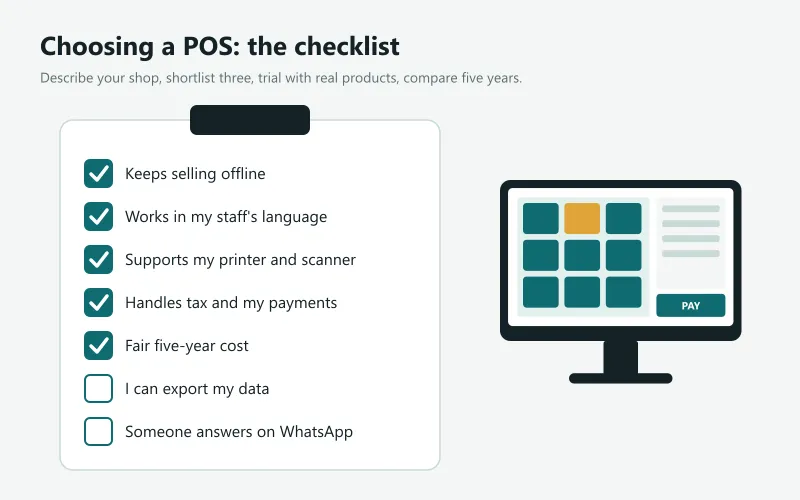
In short
- Start with your business, not with features: how you sell, how busy you get, who uses the till and what you want to know at the end of the day.
- Shortlist three systems, ask each the same 15 questions, and compare the total cost over five years including hardware.
- Run a real trial: your products, your printer, your busiest hour, an internet cut and the closing count.
- Avoid systems that lock your data in, charge for every small change, stop without internet or have no one to call when something goes wrong.
Step 1: Describe how you sell today
Before looking at any POS, write one page about your business. It keeps the demos honest, because every vendor shows its best features, not yours.
- What do you sell, roughly how many items, and do they have barcodes?
- How many counters, how many customers in the busiest hour, how many staff use the till?
- How do customers pay (cash, card, QR, credit accounts, gift cards)?
- Do you also sell online, by phone, at events, or deliver?
- What do you want to know every evening (sales, cash, best sellers, stock to reorder)?
- Who does your accounts, and what do they need from you?
Step 2: Separate must-haves from nice-to-haves
| Business | Usually must-have |
|---|---|
| Retail shop | Barcodes, stock, returns, receipts, daily cash report |
| Grocery, supermarket | Fast scanning, weighing scale, expiry, reorders |
| Café, restaurant | Tables or open orders, kitchen tickets, add-ons, service charge |
| Pharmacy | Batches and expiry, search by generic name |
| Electronics, phones | Serial numbers, warranty, repairs |
| Salon, services | Appointments or quotes, staff commission |
Step 3: Ask every vendor the same 15 questions
- Can I keep selling when the internet is down? Show me.
- Which devices does it run on (Windows, Mac, Android, iPhone, browser)?
- Which printers, scanners and cash drawers does it support, by model?
- Which languages can staff and receipts use?
- How are taxes handled, and are tax changes updated for free?
- Which payment methods can I record, and can a bill be split?
- How does stock work: units and packs, expiry, transfers, counts?
- Can I see sales from home or another branch?
- What does it cost in total over five years, including updates, support and an extra till?
- What happens to my data if I stop paying? Can I export it?
- Where is my data stored, and who can access it?
- Who answers when it breaks on a Saturday evening, and how (phone, WhatsApp, chat)?
- Is there a help centre with step-by-step guides?
- Can I import my products and customers from a spreadsheet?
- Is there a free trial with every feature?
Step 4: Run a trial like a real day
A demo shows what the vendor wants you to see; a trial shows your real day. Use the trial period with your own products and your own staff:
- Import or type 50 of your real products, with barcodes and prices.
- Print a receipt on your own printer; open the drawer.
- Have a cashier who has never seen the system do ten sales without help.
- Switch off the internet in the middle of a sale and keep selling. Read our offline POS guide for the full test.
- Do a return, a discount, a split payment and the end-of-day cash count.
- Look at the reports the next morning: are they the ones you asked for in Step 1?
Step 5: Compare the real cost
Add up five years: software (licence plus updates and support, or the plan), hardware, paper, the extra till or branch you expect, and training. A cheap first payment can hide a large total. Our POS price guide shows a worked example.
Red flags
- No free trial, or a trial without the features you need.
- "It works offline" but the demo is never shown without internet.
- No way to export your data.
- Every change (a new tax, a new receipt layout) is a paid job.
- Support only by e-mail, only in office hours, or only in a language your staff do not use.
- Contracts that lock you in for years.
Where Sevo Biz App fits
Sevo Biz App is a cloud POS and business system for small and growing shops, cafés and restaurants, made in Sri Lanka. It runs in a browser on any device, keeps selling offline, works in Sinhala, Tamil and English, and includes stock, purchasing, accounts, staff and payroll. Every feature is free for 14 days with no card needed, products import from a spreadsheet, and help comes from a guide centre and WhatsApp. Plans from Rs 900 a month: see pricing.
Questions and answers
What should I look for in a POS system for a small business?
Reliability (it keeps selling offline), ease of use for your staff, the features your type of business needs, support for your printer and scanner, a fair five-year cost, data you can export and support you can reach when you need it.
How long does it take to set up a POS?
A browser-based POS can be selling in under an hour: create the account, import products from a spreadsheet, connect a printer. A full setup with stock, suppliers and staff takes a few days alongside normal work.
Should I choose a POS with monthly fees?
A monthly or yearly plan usually includes updates, backups and support and makes it cheap to start. Compare its five-year total with a one-time licence plus its updates and support.
Can I change POS systems later?
Yes, if your current system lets you export products, customers and sales. Ask about exports before you buy, not when you want to leave.